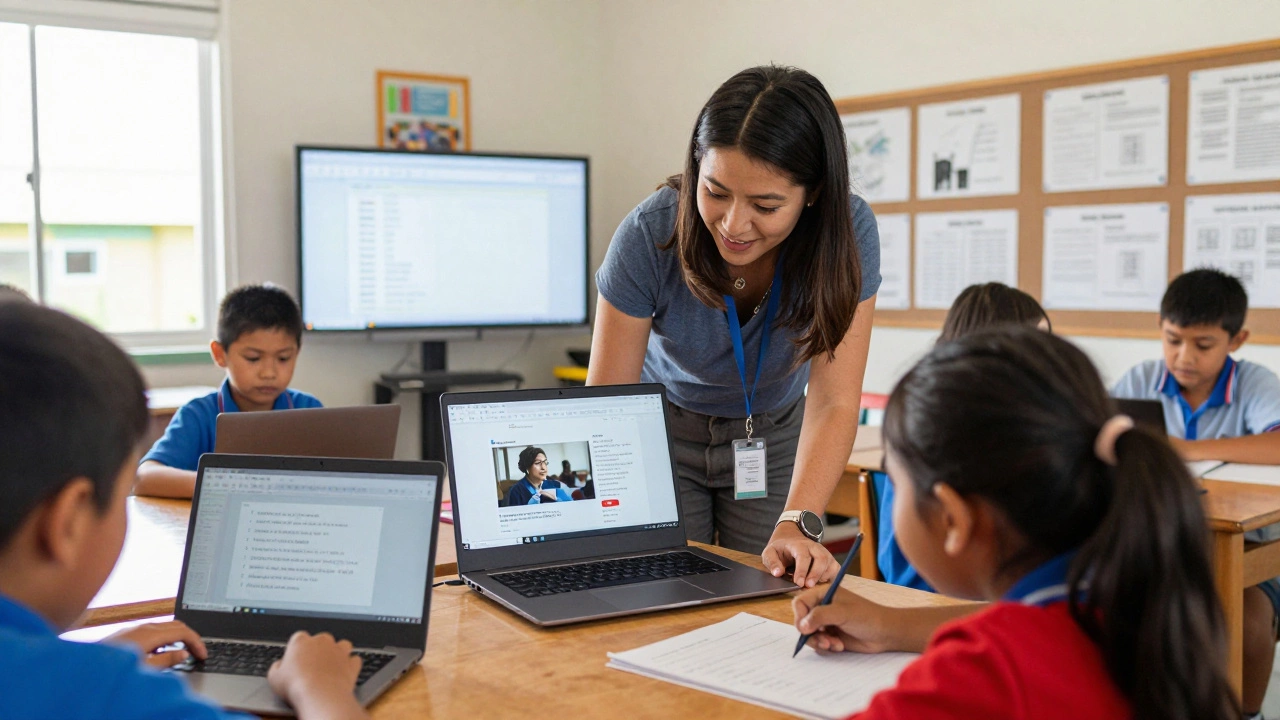
When people ask if Google has a course builder, they’re usually wondering if they can create and host their own online courses using Google tools - like how Teachable or Thinkific works. The short answer? Google doesn’t have a single, branded product called a "course builder." But that doesn’t mean you can’t build courses with Google. In fact, many educators, small businesses, and nonprofits do it every day - and they’re not using fancy software. They’re using free, powerful tools most people already have access to.
Google Doesn’t Sell a Course Platform - But It Gives You the Pieces
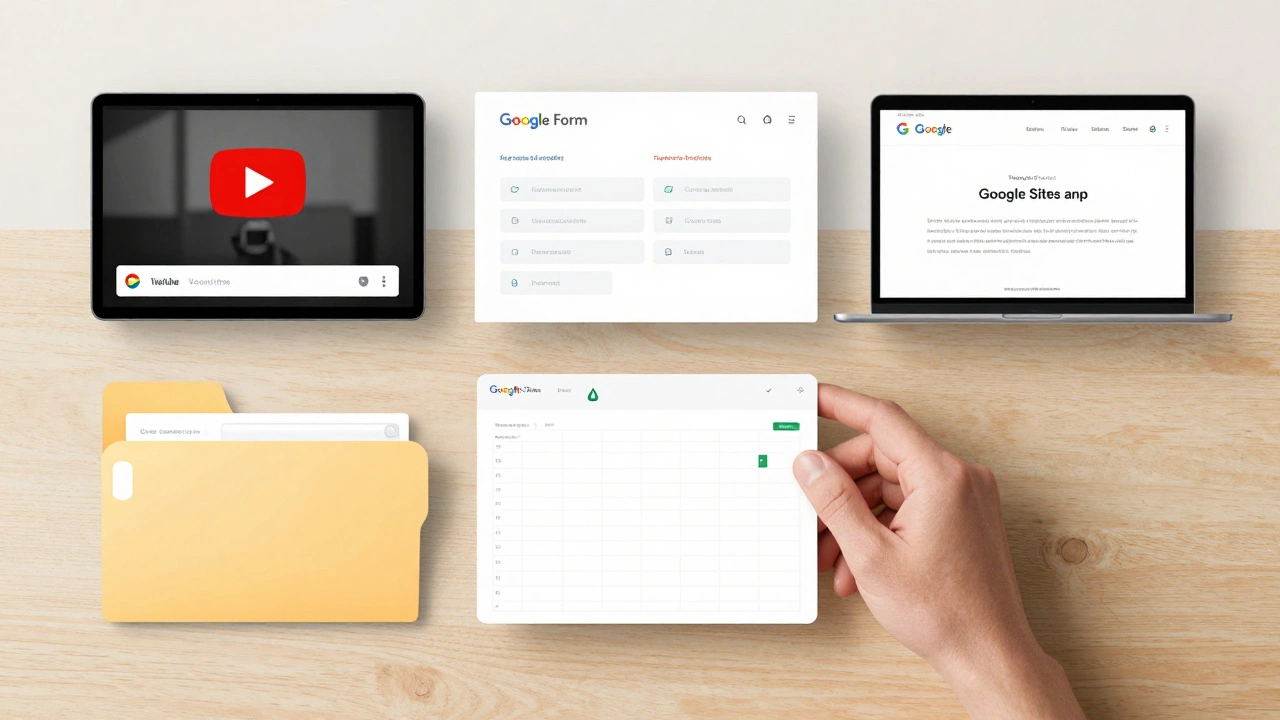
Google isn’t in the business of competing with platforms like Udemy or Coursera. It doesn’t have a "Google Courses" dashboard where you click, drag, and publish a full course. Instead, Google gives you the raw materials: free apps that work together like Lego blocks. You don’t need to pay for a course builder when you can use Google Forms, Google Drive, Google Sites, and YouTube - all of which are free, reliable, and already trusted by millions.
Take a high school teacher in rural New Zealand, for example. She uses Google Forms to create quizzes after each video lesson. She uploads her recorded lectures to YouTube and embeds them into a simple Google Site. Students submit assignments through Google Docs. She tracks progress with a shared Google Sheet. No subscription. No monthly fee. Just clean, functional learning.
How Google Tools Actually Build Courses
Here’s how real people are building courses using Google’s ecosystem - step by step:
- Content creation: Use Google Docs to write lesson outlines, reading materials, or handouts. You can share them as PDFs or let students edit them collaboratively.
- Video lessons: Record your讲解 with your phone or laptop, upload to YouTube, and set it to "unlisted" so only your students can access it. YouTube handles hosting, streaming, and even captions automatically.
- Quizzes and feedback: Build auto-graded quizzes with Google Forms. Set it to collect emails so you know who completed each module. You can even use branching logic to send students to different lessons based on their answers.
- Course hub: Build a simple website with Google Sites. Add your YouTube videos, downloadable PDFs, forms, and even a calendar for deadlines. It looks professional and works on any device.
- Progress tracking: Use Google Sheets to log who’s finished each section. Add conditional formatting to highlight late submissions or top performers.
This setup costs nothing. It’s mobile-friendly. And it’s been used by teachers in Kenya, coding bootcamps in Mexico, and even a small yoga studio in Auckland that teaches 200 students a month.
What Google Offers Instead of a Course Builder
Google does have some tools that look like course builders - but they’re not meant for public use. Here’s what’s actually available:
- Google Classroom: This is for K-12 and some higher-ed teachers. It lets you assign lessons, collect work, and grade. But it’s not a public platform. You can’t sell courses or let strangers sign up. It’s for enrolled classes only.
- Google for Education: This is a suite of tools for schools. It includes Classroom, Drive, Meet, and more. Again, it’s not for creating public courses. It’s for institutions that already have students.
- Google Learn: This is Google’s internal training platform for employees. It’s not public. You can’t access it unless you work at Google.
So if you’re looking for a Google-branded course platform like "Google Learn" that you can use to teach the public - it doesn’t exist. But that’s not a limitation. It’s a clue. Google’s philosophy is to give you the tools to build your own solution.
Why This Approach Works Better Than Paid Platforms
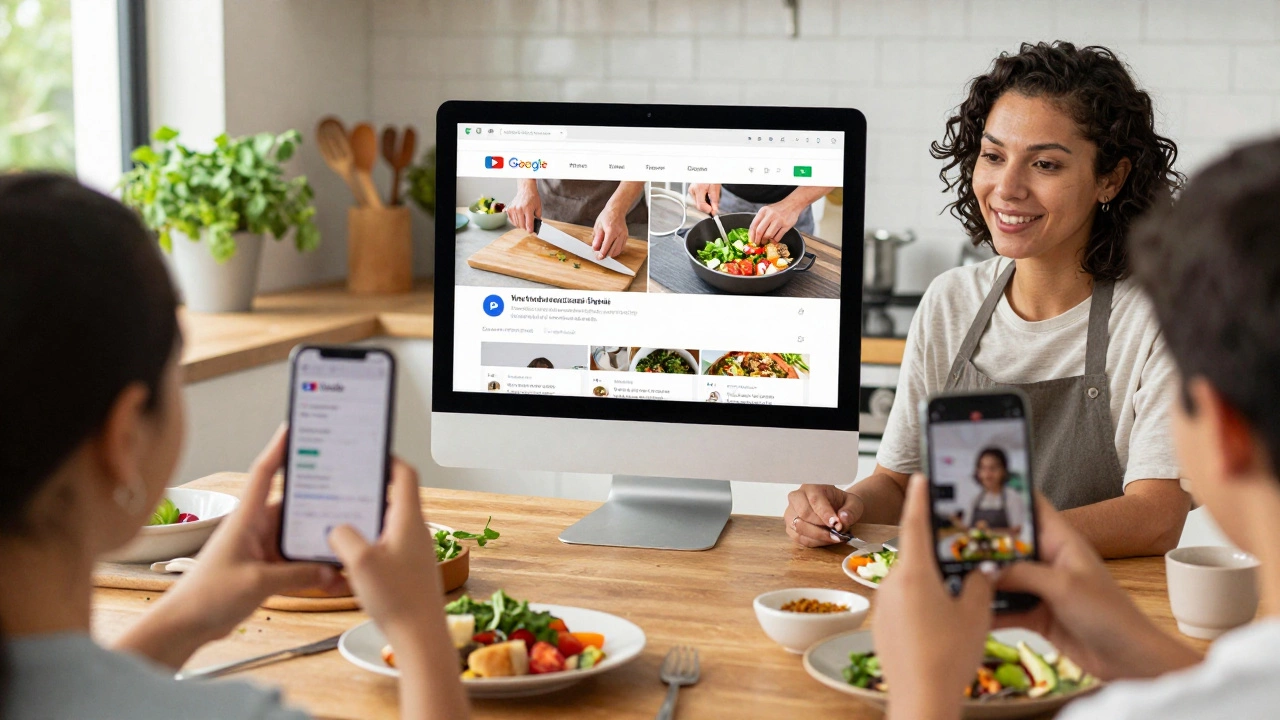
Most paid course builders lock you in. If you stop paying, your course disappears. Your students lose access. Your data might vanish. With Google tools, you own everything. Your videos are on YouTube. Your documents are in Drive. Your forms are saved in your Google account. You’re not dependent on a company’s pricing changes or server outages.
Also, Google tools integrate seamlessly. A student who opens a Google Form link gets auto-signed in if they’re using their Gmail. No passwords. No confusion. No payment gateways to set up. No credit card required. That simplicity is why small educators keep choosing it - even in 2026.
Limitations You Should Know
Of course, this method isn’t perfect. Here’s what you’ll miss compared to paid platforms:
- No automated certificates: Google doesn’t generate downloadable certificates. You’ll have to design them in Canva or Google Docs and email them manually.
- No built-in payments: If you want to charge for your course, you’ll need to set up Stripe, PayPal, or a simple bank transfer - outside of Google.
- No student dashboards: Students won’t see a "My Courses" page. You’ll need to guide them manually through your Google Site.
- No analytics beyond basics: You’ll get views on YouTube and form responses, but no heatmaps, completion rates, or engagement scores.
These aren’t dealbreakers for most small-scale creators. But if you’re running a business with hundreds of paying students, you’ll eventually outgrow this setup.
Who Should Use Google Tools for Course Building?
You should try this if:
- You’re a teacher, coach, or expert with a small audience (under 500 students).
- You want to start without spending a dollar.
- You’re comfortable using basic tech tools and don’t need fancy automation.
- You value ownership and control over convenience.
You should look elsewhere if:
- You need automated certificates, payments, or student dashboards.
- You’re scaling to thousands of learners.
- You want marketing tools like email funnels or affiliate programs built in.
What to Do Next
If you’re serious about building a course with Google tools, here’s a simple starter plan:
- Create a YouTube channel for your course content.
- Build a Google Site as your course homepage.
- Design a Google Form for each lesson’s quiz or reflection.
- Store all materials in a shared Google Drive folder.
- Share the Google Site link with your students.
It takes less than a day to set up. And it lasts forever - as long as you keep your Google account active.
Real Example: A Cooking Class in Auckland
One local chef in Auckland built a 6-week course on sustainable cooking using exactly this method. She recorded short videos on knife skills and composting, uploaded them to YouTube, and embedded them into a Google Site. Each week, students filled out a Google Form with photos of their meals. She graded them with handwritten notes in Google Docs. No website builder. No subscription. Just a simple link shared via WhatsApp. In three months, she taught over 180 people - all for free. She now uses the same system to offer paid workshops via PayPal.
Does Google offer a free course builder for teachers?
Google doesn’t offer a standalone course builder, but teachers can use Google Classroom for free to assign lessons, collect work, and grade. It’s designed for enrolled classes, not public courses. For public teaching, educators combine Google Sites, Forms, Drive, and YouTube to build their own free course platform.
Can I sell courses using Google tools?
Yes, but not through Google itself. You can host your course content on YouTube and Google Sites for free, then use PayPal, Stripe, or bank transfers to collect payments. Google provides the platform - you handle the sales. Many small creators do this successfully without any paid course platform.
Is Google Classroom the same as a course builder?
No. Google Classroom is a learning management system for schools, not a course builder for the public. It requires students to be added by an educator, and it doesn’t support payments, public sign-ups, or certificates. It’s great for classrooms - but not for selling courses online.
What’s the best free alternative to Teachable or Thinkific?
The best free alternative is a combination of Google Sites, YouTube, Google Forms, and Google Drive. This setup lets you host videos, collect assignments, deliver content, and track progress - all without paying a cent. It’s less polished than paid platforms but 100% owned by you, with no risk of shutdown or price hikes.
Can students access Google course materials offline?
Yes. Google Docs, Sheets, and Drive files can be downloaded as PDFs or Word documents. YouTube videos can be downloaded for offline viewing using third-party tools (if allowed by copyright). Students can save materials to their devices and access them without internet - making this ideal for areas with poor connectivity.