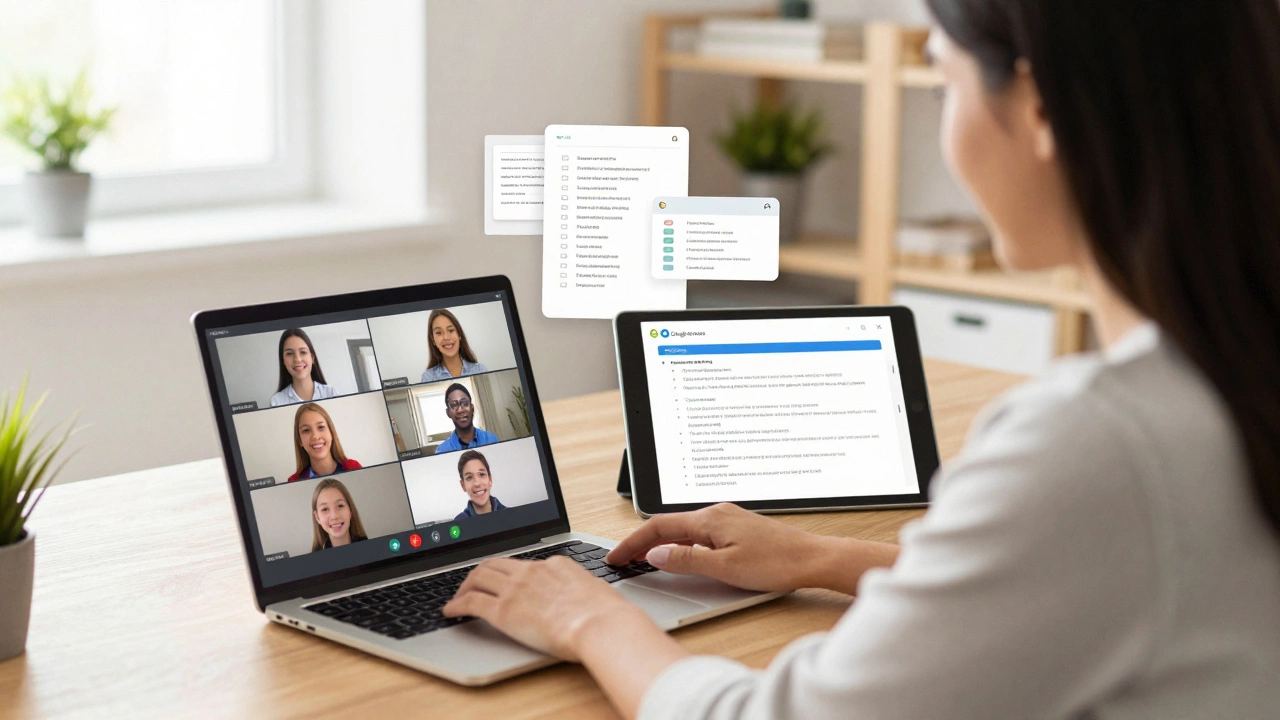
Online Teaching App Decision Guide
Find Your Perfect Teaching Platform
Answer 3 quick questions to get personalized recommendations based on the latest online teaching tools for 2026.
If you're asking which app to use to teach online, you're not alone. Teachers, tutors, and coaches are switching to digital classrooms faster than ever. But with so many options-Zoom, Google Meet, Microsoft Teams, and dozens of others-it’s easy to feel overwhelmed. The right app doesn’t just let you video call. It needs to handle student engagement, lesson materials, live whiteboards, breakout rooms, and even grading. Here’s what actually works in 2026.
What Makes a Good Online Teaching App?
Not all video conferencing tools are built for teaching. A good online teaching app needs more than a camera and mic. It should support:
- Real-time interaction with students
- Screen sharing and digital whiteboards
- Recording lessons for later review
- Attendance tracking and assignment uploads
- Breakout rooms for group work
- Integration with calendars and LMS systems
If your app can’t do at least four of these, you’re spending too much time fixing tech issues instead of teaching.
Zoom: The Reliable Default
Zoom still leads in simplicity. Over 70% of K-12 schools and 60% of private tutors use it in 2026. Why? It’s easy. You click a link, students join. No login needed. You can record sessions, share screens, and use breakout rooms-all free on the basic plan.
But Zoom has limits. The free version cuts off calls after 40 minutes. No built-in quiz tools. No way to auto-track who attended or turned in homework. You’ll need to juggle Google Forms or Excel spreadsheets to keep records. If you’re teaching one-on-one or small groups, Zoom works fine. For anything more structured, it’s not enough.
Google Meet + Classroom: The Free All-in-One
If you already use Gmail or Google Drive, Google Meet paired with Google Classroom is the most seamless combo. Meet handles video. Classroom handles everything else: assignments, grading, due dates, feedback, and attendance-all in one place.
Here’s how it works: You create a class in Classroom, generate a Meet link, and students join with their school Google accounts. When you end the class, attendance is logged. Assignments are automatically saved to student folders. Grades sync to a single gradebook. No extra apps. No manual tracking.
It’s free for teachers. No ads. No paywalls. And it works on Chromebooks, phones, tablets, and laptops. If you’re teaching middle school, high school, or adult learners with tech access, this combo is hard to beat.
Microsoft Teams for Education: The Corporate-Grade Option
Teams is often overlooked by teachers, but it’s quietly becoming the go-to for public schools and universities. It’s part of Microsoft 365 for Education, which is free for verified institutions. Teams includes video meetings, assignment boards, grading tools, and integration with OneNote and PowerPoint.
One standout feature: Live Transcripts. If you have students with hearing difficulties or non-native speakers, Teams generates real-time captions. You can also upload PDFs, Word docs, or Excel files directly into assignments and let students annotate them live.
Teams also lets you create a class notebook that every student can access. It’s like a digital binder that updates in real time. If you’re in a district that uses Microsoft products, Teams is the natural choice.
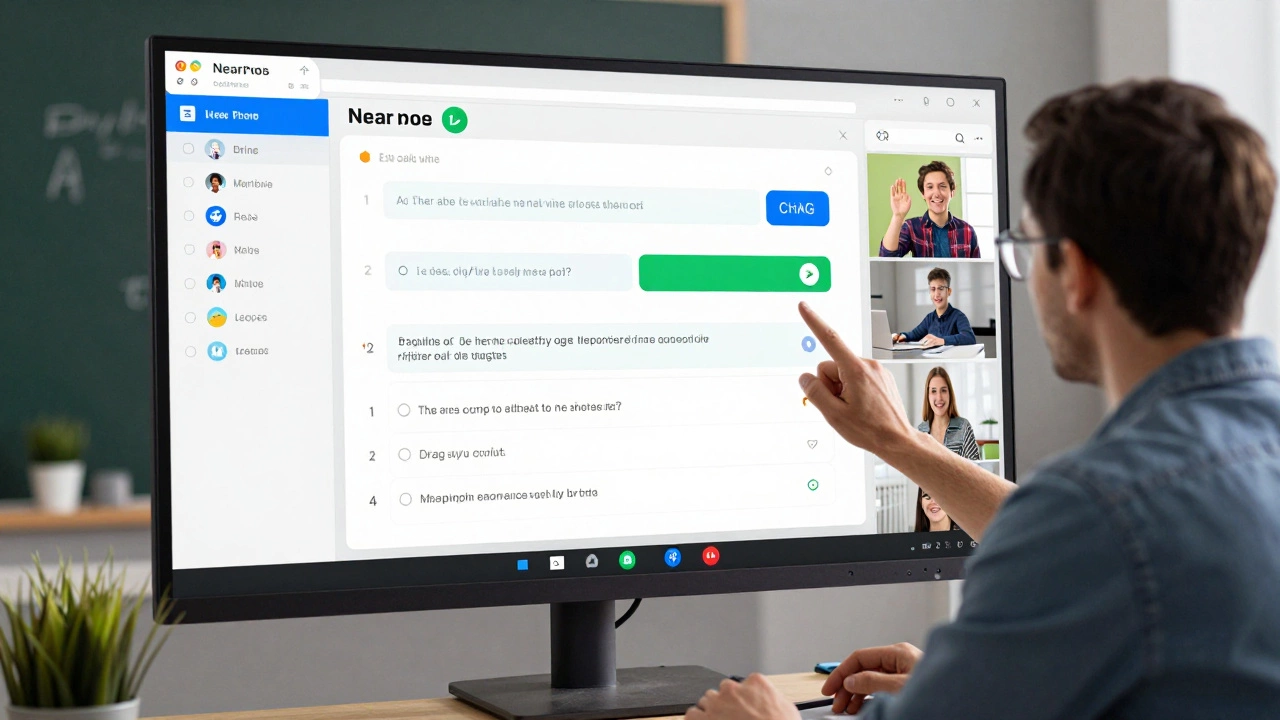
Zoom + Nearpod: The Interactive Powerhouse
Want to turn passive video calls into active learning? Try pairing Zoom with Nearpod. Nearpod lets you build interactive lessons with polls, quizzes, virtual field trips, and collaborative boards. You push the lesson to students’ devices, and they follow along in real time.
For example: You’re teaching history. You show a video of the Civil War, then drop in a poll: “Which side had better logistics?” Students answer live. You see results instantly. Then you open a collaborative board where they drag and drop primary sources into categories. All of this happens inside Zoom, without switching apps.
Nearpod costs $199/year for teachers, but it’s worth it if you want students to stay engaged. It’s used by over 2 million educators worldwide. If you’re tired of students turning off their cameras and zoning out, this combo fixes that.
Outschool: The Marketplace for Live Classes
What if you don’t want to manage your own student list? Outschool lets you host live classes for kids aged 3-18, and they handle payments, scheduling, and marketing. You just show up, teach, and get paid.
Teachers earn $15-$40 per hour depending on subject and experience. Popular topics include coding for kids, creative writing, and STEM experiments. Outschool’s platform includes built-in chat, screen sharing, and attendance tracking. It’s designed for parents who want structured, small-group classes-not one-on-one tutoring.
If you’re an expert in a niche subject and want to teach without building a website or handling payments, Outschool is the easiest path.
Specialized Tools for Specific Needs
Not everyone teaches the same thing. Here are niche tools for specific audiences:
- Desmos for math teachers: Interactive graphing tools that let students manipulate equations live.
- Padlet for art or discussion-based classes: A digital bulletin board where students post images, videos, and text.
- Classcraft for younger students: Turns lessons into a game with points, rewards, and team challenges.
- Flip for student video responses: Students record short videos answering prompts, and you give feedback in video replies.
These aren’t full teaching platforms-they’re supplements. Use them to add depth to your main app.
What to Avoid
Some apps look great but fail in real classrooms:
- Skype: No breakout rooms, no recording, no assignment tracking. It’s outdated for teaching.
- Discord: Great for chats, terrible for structured lessons. No calendar sync, no grading, no attendance.
- Facebook Live: No privacy controls. Students can’t join anonymously. Parents won’t allow it.
Stick to tools built for education, not social media or general video calls.
How to Choose: A Quick Decision Guide
Still unsure? Answer these three questions:
- Who are you teaching? Kids? Teens? Adults? If under 18, prioritize tools with parental controls and FERPA compliance (like Google Classroom or Teams).
- How many students? Under 10? Zoom or Meet works. Over 20? Use Classroom or Teams for automation.
- Do you need grading and records? Yes? Then choose a platform with built-in assignment and gradebook tools. No? Then Zoom or Outschool are fine.
If you’re just starting out, try Google Classroom + Meet. It’s free, simple, and covers 80% of teaching needs. If you want more interactivity, add Nearpod. If you’re running a business, consider Outschool.
Final Thought: Don’t Overcomplicate It
The best app is the one you’ll actually use. No app will fix a disengaged class. But a bad app will make your job harder. Pick one that matches your teaching style, not the one with the most features. Test it with one class. See what breaks. Adjust. Then scale.
Teaching online isn’t about the tech. It’s about connection. The right app just helps you get there faster.
Can I use Zoom for teaching without paying?
Yes, Zoom’s free plan works for teaching, but it limits meetings to 40 minutes for groups of three or more. You can’t record sessions or use advanced features like breakout rooms unless you upgrade. For occasional use, it’s fine. For regular teaching, you’ll need Zoom’s $14.99/month plan.
Is Google Classroom better than Zoom for teaching?
They do different things. Zoom is for live video. Google Classroom is for managing assignments, grading, and tracking attendance. The best approach is using them together: host your class on Zoom, then post assignments and feedback in Classroom. One handles interaction, the other handles organization.
What’s the cheapest way to teach online?
Use Google Meet + Google Classroom. Both are completely free for educators. You get video calls, assignment uploads, grading, and attendance tracking-all without spending a cent. No credit card needed. No trials. Just sign up with a Gmail account and start.
Do I need a special app for teaching math or science?
Not necessarily. But tools like Desmos (for math) or PhET Simulations (for science) make lessons way more effective. You can still use Zoom or Google Meet as your main platform and embed these tools during class. For example, share your screen and let students adjust variables on a live graph. It turns abstract concepts into hands-on experiences.
Can I teach kids under 13 using these apps?
Yes, but only with apps that follow COPPA and FERPA rules. Google Classroom and Microsoft Teams for Education are designed for this. They don’t collect personal data from minors without parental consent. Avoid apps like Discord, Zoom (without a school account), or any platform that requires students to create their own accounts.