Computer Spec Finder for Coding
Select your primary focus area to see the recommended hardware specifications.
You've signed up for your first coding class, you're excited to write your first line of code, and then reality hits: you stare at your five-year-old laptop with a sticky keyboard and wonder if it can actually handle the job. You don't need a supercomputer from NASA to learn Python or build a website, but you do need something that won't make you want to throw it out the window when the screen freezes during a lecture.
The truth is, there is no single "best" computer for everyone. A student learning HTML/CSS has very different needs than someone diving into machine learning or game development. The good news? You probably already own a machine that works, or you can get a decent one for less than the cost of a month's worth of coffee. Let's break down exactly what matters, what doesn't, and how to pick the right tool without overspending.
The Core Components That Actually Matter
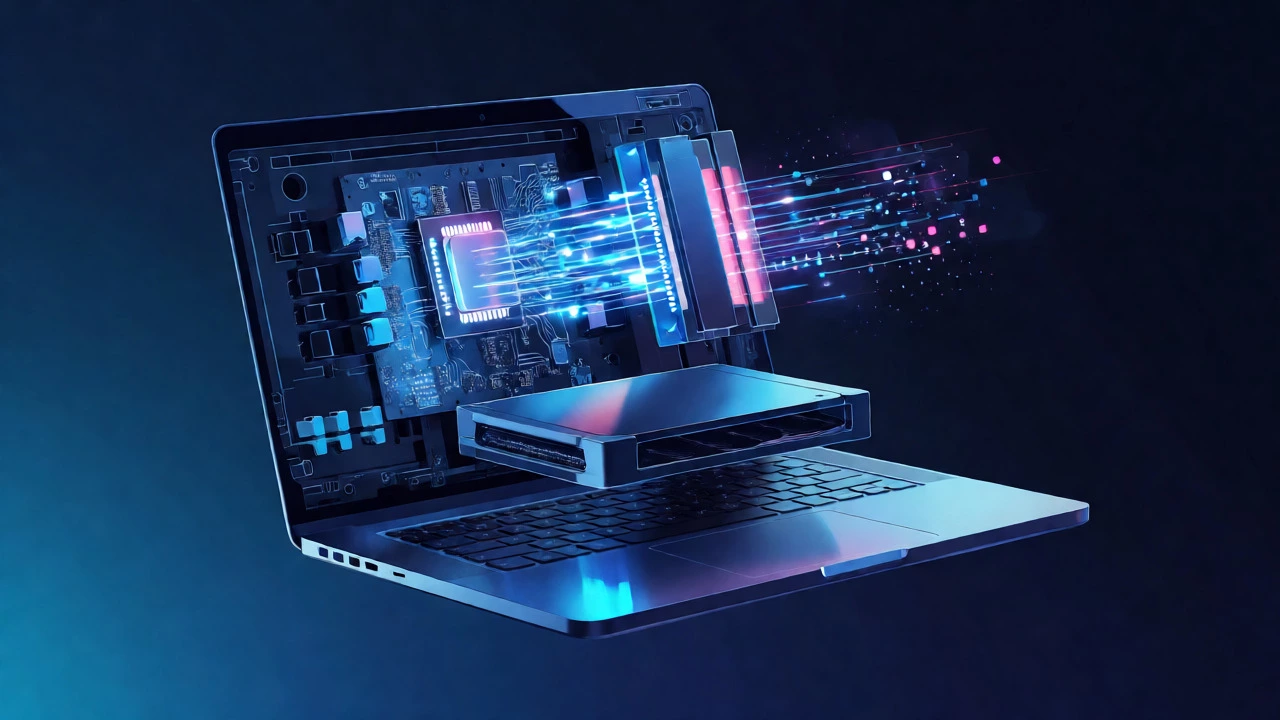
When you look at tech specs, it's easy to get lost in numbers. Ignore the marketing fluff. For coding, only four things really impact your experience: the processor (CPU), memory (RAM), storage speed, and the screen/keyboard quality. Everything else is secondary unless you have specific niche needs.
CPU is the brain of your computer. It executes your code. For most beginner and intermediate tasks-like web development, data analysis with basic libraries, or mobile app creation-a modern mid-range processor is plenty. You're looking for an Intel Core i5 or AMD Ryzen 5. If you're on a Mac, the Apple M-series chips are incredibly efficient and powerful for this workload. You don't need the top-tier i7 or i9 unless you're compiling massive C++ projects or running heavy simulations daily.
RAM is where most people go wrong. Think of RAM as your desk space. If your desk is too small, you keep shuffling papers around, which slows you down. Coding tools, especially browsers with documentation open, IDEs (Integrated Development Environments) like VS Code, and local servers, eat up RAM quickly. 8GB is the absolute minimum floor, but 16GB is the sweet spot for comfort. If you plan to run virtual machines or Docker containers later, aim for 16GB from day one. Upgrading RAM on modern laptops is often impossible, so buy enough upfront.
Storage needs to be fast. This means you need an SSD (Solid State Drive), not an old-school HDD (Hard Disk Drive). An SSD makes booting your OS and opening large files instant. A slow hard drive will make your coding sessions feel sluggish, even if your CPU is powerful. Aim for at least 256GB, though 512GB gives you room to breathe as your projects grow. Cloud storage helps, but having local access to your files is crucial for workflow speed.
Finally, consider the Ergonomics. You will spend hours typing. A bad keyboard causes fatigue; a bad screen causes eye strain. Look for a backlit keyboard with decent key travel. For screens, 1080p resolution is standard. Higher resolutions (4K) look nice but drain battery life faster and require scaling adjustments that can sometimes make text blurry in older software. A matte screen is better than glossy if you work near windows.
Mac vs. Windows vs. Linux: Which OS Fits Your Goals?
This is the biggest debate in developer circles, but for beginners, it's simpler than you think. Your choice should depend on what you want to build and your budget.
macOS is based on Unix, just like many server environments. This means the command line terminal feels natural, and setting up development environments for Ruby, Python, or Node.js is often smoother than on Windows. It's the industry standard for front-end web development and iOS app creation. If you want to build apps for iPhones, you literally cannot use a PC. However, Macs are expensive. A refurbished MacBook Air with an M1 chip is arguably the best value-for-money coding machine available today.
Windows has changed dramatically. With WSL2 (Windows Subsystem for Linux), you can run a full Linux kernel inside Windows. This gives you the best of both worlds: the compatibility of Windows games and office apps, plus the power of Linux tools. It's great for .NET development, game dev with Unity, and general enterprise coding. Windows laptops also offer more variety in price points and hardware configurations.
Linux distributions like Ubuntu or Fedora are free and lightweight. They run well on older hardware. Many backend developers prefer Linux because it mirrors the production servers they deploy to. The downside? Driver issues can happen with Wi-Fi cards or graphics, and some commercial software (like Adobe Creative Suite or Microsoft Office) doesn't run natively. If you love tinkering and want total control, Linux is rewarding. If you just want to code and not fight your OS, stick to Mac or Windows.
| Feature | macOS | Windows | Linux |
|---|---|---|---|
| Best For | Web Dev, Mobile (iOS) | Game Dev, .NET, General Use | Backend, DevOps, Low-Resource PCs |
| Cost | High | Low to High | Free (Hardware costs apply) |
| Learning Curve | Low (if familiar with Apple) | Low (familiar to most) | Moderate to High |
| Software Compatibility | Excellent (Unix-based) | Excellent (Native + WSL2) | Open Source focused |
Matching Hardware to Your Learning Path
Not all coding classes require the same horsepower. Tailoring your purchase to your curriculum saves money.
If you're taking Introductory Web Development classes (HTML, CSS, JavaScript), your requirements are low. Any laptop from the last 4-5 years with 8GB RAM and an SSD will handle this fine. You'll mostly be editing text files and refreshing browser tabs. Don't overspend here. A used Dell XPS 13 or a Lenovo ThinkPad T-series is perfect.
For Data Science and Python courses, RAM becomes critical. Libraries like Pandas and NumPy load datasets into memory. If you're working with CSV files under 1GB, 8GB might suffice. But if you're touching larger datasets or using Jupyter Notebooks with multiple kernels, 16GB is non-negotiable. A dedicated GPU isn't usually needed for beginner data science, but it helps if you move into deep learning later.
Game Development is the outlier. Engines like Unity or Unreal Engine are graphically intensive. You need a discrete GPU (graphics card). Integrated graphics (Intel Iris Xe or Apple Silicon integrated) struggle with 3D rendering. Look for laptops with NVIDIA RTX 3050 or higher. These machines are heavier and have shorter battery life, but they are necessary if you want to build playable prototypes locally.
Mobile App Development requires specific ecosystems. Android Studio is RAM-hungry and benefits from a fast SSD. iOS development strictly requires macOS. If you're doing cross-platform frameworks like Flutter or React Native, a powerful mid-range Windows or Mac machine works well, provided you have 16GB+ RAM to run emulators smoothly.
Budgeting Wisely: New vs. Refurbished
Do you need to drop $2,000 on a new MacBook Pro? Absolutely not. In fact, buying new is often a waste of money for students. Tech depreciates fast. A two-year-old flagship laptop often outperforms a brand-new budget laptop.
Consider Refurbished Business Laptops. Models like the Dell Latitude, HP EliteBook, or Lenovo ThinkPad are built to last. They have spill-resistant keyboards, sturdy hinges, and easily replaceable parts. Companies lease these for 3 years and dump them on the market cheaply. You can often find an i5/16GB/512GB SSD model for $300-$500 USD (or equivalent NZD/AUD). Just ensure the battery health is above 80% and the screen has no dead pixels.
If you prefer new, wait for sales cycles. Back-to-school seasons (January and August) often bring discounts on student-focused lines like the ASUS Zenbook or Acer Swift. Avoid gaming laptops unless you specifically need the GPU. They tend to have poor battery life, loud fans, and aggressive styling that might not fit professional internships later.

Common Pitfalls to Avoid
I see students make the same mistakes every year. Here is how to dodge them.
- Buying a Chromebook: While great for browsing, Chromebooks run ChromeOS. You can enable Linux support, but it's clunky for serious coding. Most IDEs and local servers don't run natively. Unless your course explicitly says "cloud-only," avoid Chromebooks.
- Ignoring Battery Life: If you're attending online classes or working in cafes, you need a machine that lasts 6-8 hours. Gaming laptops often last 2 hours unplugged. Check reviews for real-world battery tests, not manufacturer claims.
- Underestimating Screen Size: A 13-inch screen is portable but cramped for split-screen coding (code on one side, browser on the other). 14 to 15 inches is the ideal balance between portability and workspace. If you stick with 13-inch, invest in a cheap external monitor for home study.
- Skipping the Backup: Your laptop will die eventually. Set up automatic backups to cloud services like GitHub (for code) and Dropbox/OneDrive (for assets) on day one. Losing a semester's project to a corrupted drive is heartbreaking.
Final Checklist Before You Buy
Before you click "buy," run through this quick audit:
- Does it have at least 16GB of RAM? (If not, can it be upgraded?)
- Is the storage an SSD with at least 256GB free space?
- Does the keyboard feel comfortable for long typing sessions?
- Is the operating system compatible with your course requirements (e.g., macOS for iOS)?
- Is the warranty valid for at least one year?
Remember, the best computer is the one that lets you focus on learning, not troubleshooting. Start with solid basics, upgrade peripherals (mouse, monitor) later, and don't let spec-sheet paralysis stop you from starting your coding journey.
Can I code on a tablet like an iPad?
You can write code on an iPad, but it's not ideal for serious learning. While apps like Swift Playgrounds or Pythonista exist, you lack a full desktop environment. Setting up local servers, managing file systems, and using professional IDEs like VS Code or IntelliJ is difficult or impossible. An iPad is a great companion device for notes or light scripting, but don't rely on it as your primary coding machine for a degree or intensive bootcamp.
Do I need a dedicated graphics card for coding?
For most programming languages (Python, Java, JavaScript, C#), no. Integrated graphics are sufficient. You only need a dedicated GPU (like NVIDIA RTX series) if you are doing game development (Unity/Unreal), 3D modeling, or training deep learning models locally. If you're unsure, skip the GPU-it saves money and improves battery life.
Is 8GB RAM enough for coding in 2026?
It's the bare minimum. You can get away with it for simple HTML/CSS or basic Python scripts. However, modern browsers consume significant memory. Opening VS Code, a browser with 10 tabs, and a local server will likely max out 8GB, causing slowdowns. 16GB is highly recommended for a smooth experience, especially if you plan to multitask.
Should I choose SSD or HDD storage?
Always choose SSD. Hard Disk Drives (HDD) are mechanical and much slower. An SSD significantly reduces boot times, application launch speeds, and file compilation times. The difference in responsiveness is noticeable immediately. Never buy a new coding laptop with an HDD as the primary drive.
What is the best budget laptop for coding?
The Apple MacBook Air (M1 or M2 chip) is widely considered the best value due to its performance, battery life, and Unix-based OS. On the Windows side, refurbished Lenovo ThinkPads (T480 or newer) or Dell XPS 13 models offer excellent keyboards and durability at a fraction of the new price. Look for deals on Amazon Renewed or local certified refurbishers.